What is Directory Crop?
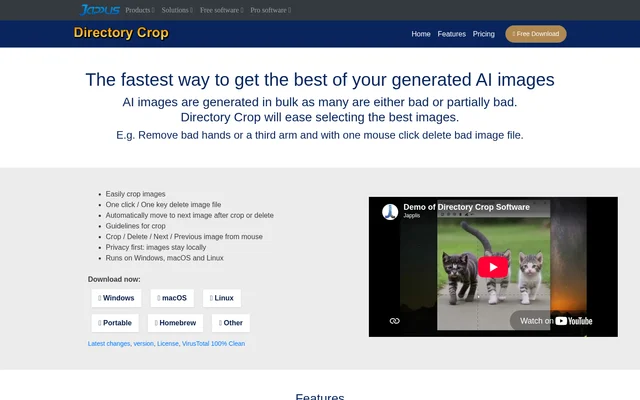
Directory Crop is a desktop utility for sorting through folders of AI-generated images. The workflow is intended for people who generate images in bulk and need to separate usable results from files with visible flaws. A crop can exclude an unwanted detail that falls outside the area worth keeping, while the delete action removes an image file that the user does not want to retain.
What Directory Crop can do
Directory Crop combines crop controls and file navigation so users can edit an image or move past it as they review a folder. Crop guidelines help users frame the area they want to keep. The application can show the cropped area, and the clipboard option lets users copy the last crop.
- Directory Crop deletes an image file with a click or keypress.
- Directory Crop moves to the next or previous image using mouse or keyboard controls.
- Directory Crop can advance automatically after cropping or deleting a file.
- Directory Crop copies the last crop to the clipboard.
- Directory Crop can keep metadata in the saved image.
How Directory Crop works
Directory Crop moves to the next file after a crop by default. Users can instead set the application to show the cropped area or take no action after cropping. The next and previous controls let users browse the folder manually, while automatic advance after a deletion brings up the next file for review.
Directory Crop lets users decide whether a saved crop replaces the original. Users can specify a separate output folder or leave the output setting empty to use the original image's folder. Those settings control different parts of the save process: the overwrite option determines whether the original is replaced, while the output setting determines where cropped files go.
Who Directory Crop is for
Directory Crop is aimed at people who generate AI images in bulk and need to review the resulting files. The product page gives unwanted hands or an extra arm as examples of details a crop might exclude. The tool is useful when the decision varies from image to image: some files can be kept as they are, some can be cropped, and others can be deleted.
- Review a folder of generated images.
- Crop out an unwanted detail near an edge.
- Delete unusable files without leaving the review workflow.
Directory Crop pricing and downloads
Directory Crop is listed as free in the product page's structured pricing data. The page offers downloads for Windows, macOS, and Linux, as well as a portable option. It also gives a Homebrew command and lists installation through Chocolatey and WinGet. The supplied product text does not describe separate paid plans.
Strengths and limitations of Directory Crop
Directory Crop keeps images local and combines cropping, file deletion, and folder navigation in the same application. Users who want to retain their source files can save crops without overwriting originals, while users who prefer to check each edit can choose to see the cropped area instead of advancing automatically. The page notes that other operating systems with Java have not been tested.
Getting started with Directory Crop
Directory Crop is available from the product page as a download for Windows, macOS, or Linux. Before working through a folder, users can decide whether to replace source images or save crops separately and whether to advance after each crop. During review, they can use the guidelines to frame a crop, move past an image without editing it, or delete an unwanted file.
Directory Crop FAQ
What is Directory Crop?
Directory Crop is a desktop utility for reviewing, cropping, and deleting images in a folder. It is designed for people who generate AI images in bulk and want to keep usable files, crop unwanted details out of some images, and remove files they do not need.
Is Directory Crop free?
Directory Crop is listed as free in the product page's structured pricing data. The page offers downloads for Windows, macOS, and Linux, as well as a portable option, and does not describe any paid plans.
Does Directory Crop upload images?
Directory Crop keeps images local, according to the product page. The desktop application lets users navigate image folders, crop or delete files, and choose whether to save cropped images in the original folder or a separate output folder.
Can Directory Crop save crops without overwriting originals?
Directory Crop can save cropped images without overwriting the original files. Users can choose whether to replace the originals and can set a separate output folder for the crops. Leaving the output setting empty uses the original image's folder.
Does Directory Crop move to the next image automatically?
Directory Crop moves to the next image after a crop by default and can also advance after a deletion. After cropping, users can choose to show the cropped area or take no action instead. Mouse and keyboard controls also let users move between images manually.
From the community
No reviews yet
Be the first to review this tool. What you write helps the next person choose.