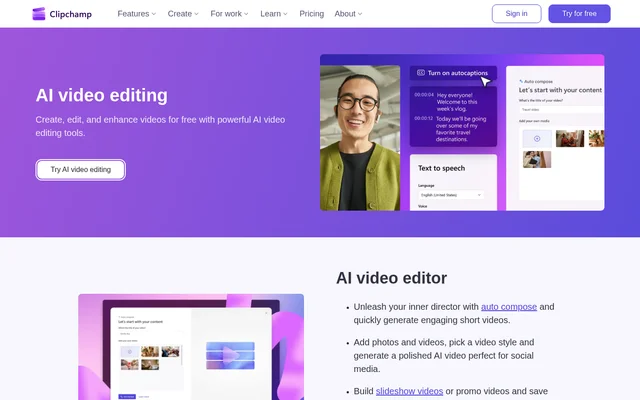
What is AI Video Editing?
AI Video Editing is a collection of video creation, audio editing, and image editing tools available in Clipchamp. AI Video Editing helps users turn photos and video clips into short videos, add spoken narration and subtitles, and clean up recordings. The page highlights social media content, presentations, online learning, demos, and podcasts as uses.
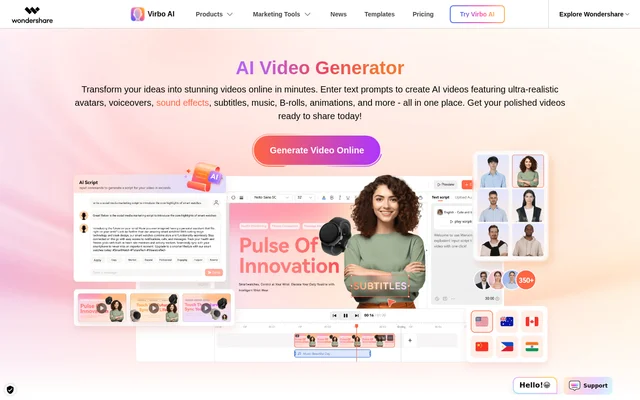
AI Video Editing combines automatic editing suggestions with controls for adjusting the results. Users can choose a video style for automatic composition, change voiceover pace and pitch, and edit subtitle fonts and placement. The tools also support slideshow and promotional video creation, including batch video creation.
What AI Video Editing can do
AI Video Editing covers several tasks that would otherwise involve assembling clips, recording narration, transcribing speech, or cleaning up sound. The tools work with photos, videos, voice recordings, and supported images. Automatic composition handles short-video creation, while the audio and subtitle tools help prepare recordings for viewers.
- AI Video Editing generates short videos from photos and videos using a selected style.
- AI Video Editing offers 400 AI voices with adjustable pace and pitch.
- AI Video Editing detects pauses or silences over 3 seconds for review.
- AI Video Editing generates automatic subtitles in over 80 languages.
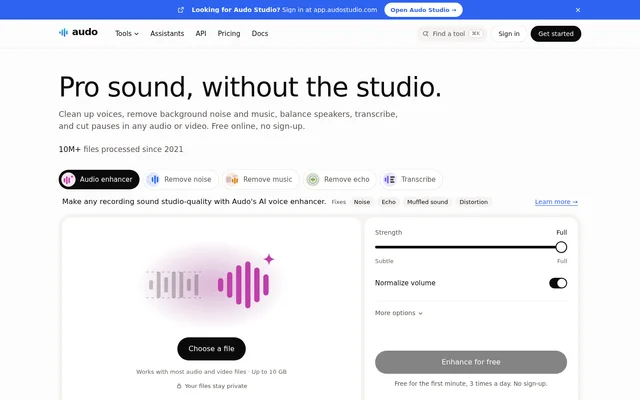
- AI Video Editing removes background noise from audio and video recordings.
- AI Video Editing removes backgrounds from PNG and JPEG images.
How AI Video Editing works
AI Video Editing runs in Clipchamp through Microsoft Edge or Google Chrome on Mac, Linux, ChromeOS, and Windows. Users can visit https://app.clipchamp.com/login, choose a sign-in method, and follow the prompts. Clipchamp also offers a Windows app for Windows 11 and Windows 10, so browser access is not the only option.
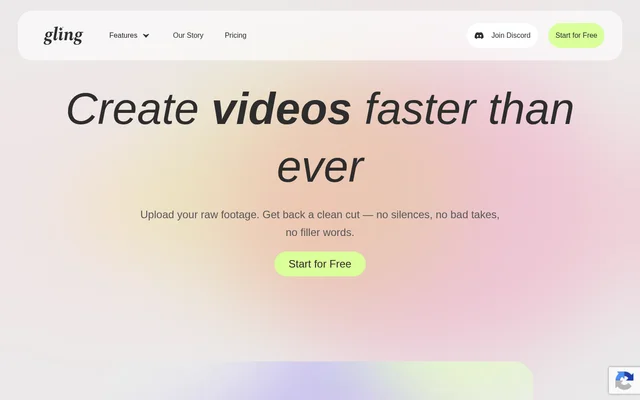
AI Video Editing uses different workflows for different tasks. Automatic composition starts with uploaded photos and videos and a chosen style. Silence removal creates a recording transcript and identifies pauses; users preview and accept suggestions. Subtitle generation allows font and placement changes, and users can download the resulting transcript for free.
Who AI Video Editing is for
AI Video Editing serves people creating social videos, narrated learning materials, presentations, and recorded discussions. The source also identifies aspiring creators and experienced vloggers as users of Clipchamp. Image background removal supports visual tasks such as making transparent logo watermarks or adding colored image backgrounds to social media videos.
- Social media creators can produce short promos and slideshow videos.
- Educators can add voiceover narration to online learning videos.
- Presentation makers can generate spoken narration from text.
- Demo and podcast makers can review and remove unwanted pauses.
AI Video Editing pricing and plans
AI Video Editing tools are free for all Clipchamp users, with no limit on how many AI tools can be used. The free editor supports unlimited video creation and watermark-free exports up to 1080p HD. A personal Microsoft account provides access to the free online editor without payment or downloads.
AI Video Editing sits within an editor that also offers premium features through Microsoft 365 Personal and Family subscriptions. Premium access adds exports up to 4K UHD, premium stock assets, premium filters and effects, and a single-brand kit. Both listed plans include AI video editing and AI audio editing tools.
AI Video Editing strengths and limitations
AI Video Editing brings composition, narration, subtitles, silence removal, and noise suppression into the same editor. Free access to all listed AI editing tools and browser-based use are practical strengths. The broader editor distinguishes free and premium features, so export resolution and access to stock content or branding tools depend on the plan.
- Free video exports are limited to up to 1080p HD resolution.
- 4K UHD exports and premium stock assets require premium access.
- The free plan does not include the brand kit tool.
AI Video Editing FAQ
What is AI Video Editing?
AI Video Editing is a collection of AI tools in Clipchamp for creating and enhancing videos. AI Video Editing includes automatic video composition, text-to-speech voiceovers, automatic subtitles, silence removal, background noise suppression, and image background removal.
Is AI Video Editing free?
AI Video Editing tools are free for all Clipchamp users, with no limit on how many AI video tools can be used. Clipchamp's free plan includes watermark-free exports up to 1080p HD, while premium editor features are included with Microsoft 365 Personal and Family subscriptions.
Does AI Video Editing require a download?
AI Video Editing does not require a software download when accessed through Clipchamp in Microsoft Edge or Google Chrome. Browser access supports Mac, Linux, ChromeOS, and Windows. A Clipchamp Windows app is also available for Windows 11 and Windows 10.
Can AI Video Editing generate subtitles and voiceovers?
AI Video Editing generates automatic subtitles in over 80 languages and offers 400 AI voices for text-to-speech narration. Users can adjust voice pace and pitch, change subtitle fonts and placement, and download a video transcript for free.
How does AI Video Editing remove silences?
AI Video Editing uses auto cut to create a recording transcript and find pauses or silences over 3 seconds. Users can preview and accept the AI suggestions when editing webcam and voice recordings, including demos and podcasts.
From the community
No reviews yet
Be the first to review this tool. What you write helps the next person choose.