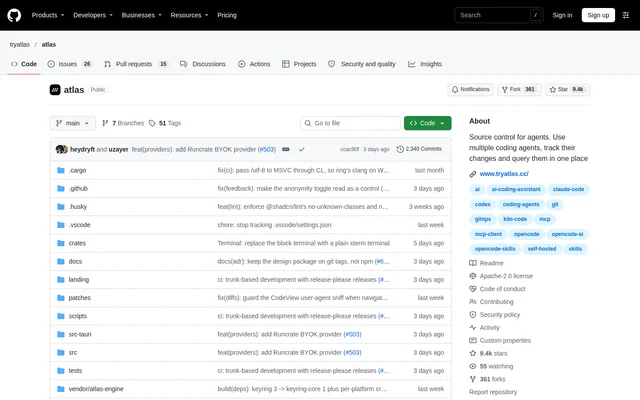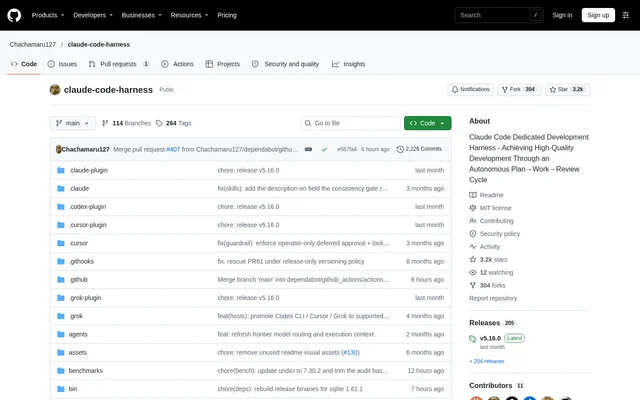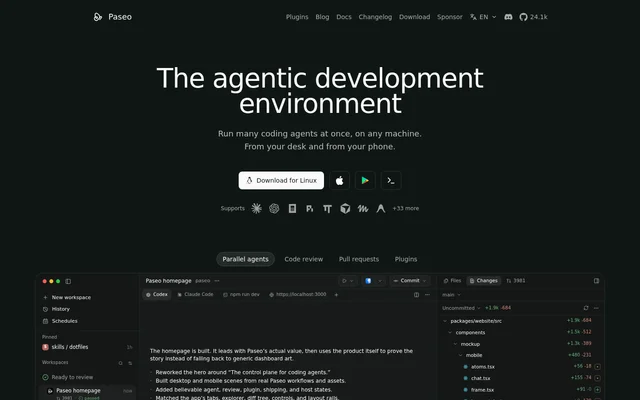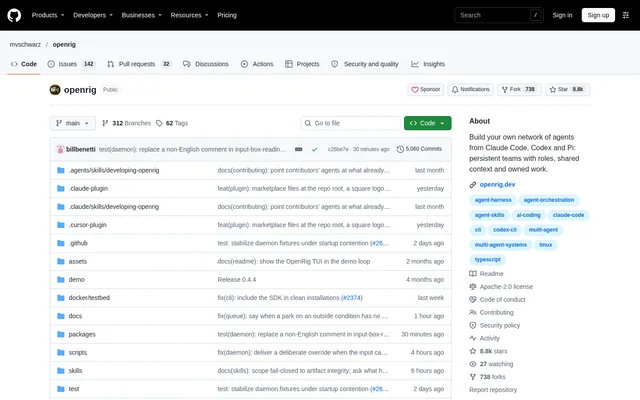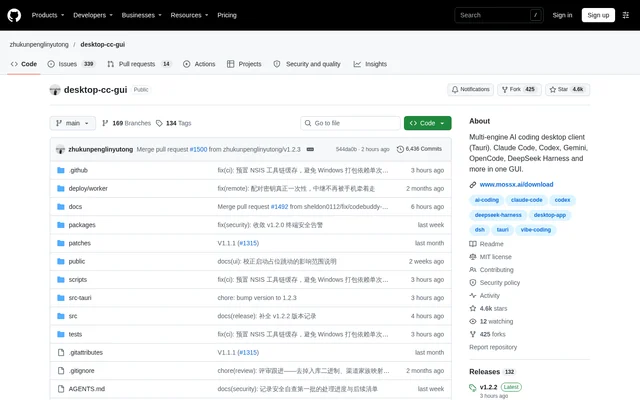
What is Desktop CC GUI?
Desktop CC GUI is an open-source desktop application for developers who want to use command-line AI coding engines through a graphical interface. Desktop CC GUI combines project-based chat with development panels, allowing users to request code changes, investigate bugs and work with Git without relying solely on a terminal.
Desktop CC GUI is built with Tauri, React, TypeScript and Rust and runs on macOS, Windows and Linux. Dedicated protocol adapters in the Rust backend handle engine events, session history and provider channels natively rather than scraping terminal output. Settings and application state are persisted locally.
What Desktop CC GUI can do
Desktop CC GUI brings engines including Claude Code, Codex CLI, Kimi CLI, Grok CLI, DeepSeek Harness, OpenCode and MiniMax Code into a shared interface. Desktop CC GUI lets developers select an engine per session and set model or reasoning-effort overrides per tab, subject to the selected engine's capabilities.
- Desktop CC GUI preserves session history across application restarts.
- Desktop CC GUI displays tool calls with expandable parameters and results.
- Desktop CC GUI provides a file tree and CodeMirror editor with Markdown preview.
- Desktop CC GUI includes a PTY-backed terminal dock.
- Desktop CC GUI supports staging, committing, branch searches and Git history inspection.
- Desktop CC GUI offers a plugin SDK, runtime and manager interface.
How Desktop CC GUI works
Desktop CC GUI starts with an installed application, a configured provider channel or CLI sign-in, and a project folder. Desktop CC GUI writes provider channels to each CLI's native configuration files rather than maintaining a parallel credential store. Claude Code, Codex CLI and Grok CLI channels can also be imported from CC Switch.
Desktop CC GUI reads native CLI session files to recover history and keep session titles synchronized. During a coding session, Desktop CC GUI shows supported streaming replies, thinking traces and tool activity, with token usage when the engine reports it. Content sent to an AI provider follows the configured CLI channel's boundary.
Who Desktop CC GUI is for
Desktop CC GUI is for developers using AI coding runtimes who want project chat, file editing, terminal access and Git controls in the same desktop application. Desktop CC GUI also supports workflows involving multiple projects through workspace management and different model choices through per-tab overrides.
- Desktop CC GUI supports writing code and fixing bugs through AI chat.
- Desktop CC GUI helps developers inspect tool results and Git diffs during coding sessions.
- Desktop CC GUI lets developers group projects and switch between workspaces.
- Desktop CC GUI serves its interface to other devices on a local network through a token-authenticated WebSocket bridge.
Desktop CC GUI licensing and downloads
Desktop CC GUI is distributed as an open-source project under the MIT license. Desktop CC GUI provides installers through GitHub Releases, including a signed Apple Silicon macOS disk image, a Windows installer, and Linux AppImage and RPM packages. The repository also documents building the application from source.
Desktop CC GUI source setup uses Node.js, pnpm, Rust and operating-system-specific Tauri prerequisites. The documented workflow is to clone the repository, install dependencies with pnpm install and launch development with pnpm dev. Desktop CC GUI also includes an in-app updater backed by GitHub Releases.
Desktop CC GUI strengths and limitations
Desktop CC GUI combines native engine adapters with practical development panels and local settings persistence. Desktop CC GUI makes runtime activity visible through tool-call rows, thinking traces and progress displays, while retaining each CLI's own configuration and session files. Compatibility remains engine-specific, so the repository's feature matrix matters when choosing a runtime.
- Desktop CC GUI does not support team mode for multi-agent orchestration.
- Desktop CC GUI does not provide per-token streaming for Kimi CLI.
- Desktop CC GUI does not support image attachments for Antigravity.
- Desktop CC GUI does not support Kimi question cards or plan mode in WSL workspaces.
- Desktop CC GUI does not yet cover MiniMax Code with provider channels or MCP/Skills sync.
Desktop CC GUI FAQ
What is Desktop CC GUI?
Desktop CC GUI is an open-source multi-engine AI coding desktop client. Desktop CC GUI brings command-line runtimes such as Claude Code, Codex CLI and OpenCode into a graphical interface with project chat, session history, file editing, terminal access and Git controls.
Is Desktop CC GUI open source?
Desktop CC GUI is an open-source project distributed under the MIT license. Desktop CC GUI provides source code in its GitHub repository, downloadable installers through GitHub Releases, and instructions for building and running the application from source.
Which operating systems does Desktop CC GUI support?
Desktop CC GUI runs on macOS, Windows and Linux. Desktop CC GUI provides a signed Apple Silicon macOS installer, a Windows NSIS installer, and Linux AppImage and RPM packages through GitHub Releases, with operating-system prerequisites documented for source builds.
What can developers do with Desktop CC GUI?
Desktop CC GUI lets developers chat with AI coding engines to write code, fix bugs and commit changes to Git. Desktop CC GUI also includes file browsing, a CodeMirror editor, a built-in terminal, Git diff inspection, branch searches and session history.
How do you set up Desktop CC GUI?
Desktop CC GUI setup begins by installing the application from GitHub Releases, opening Settings, configuring a provider channel or signing in, and adding a project folder. Desktop CC GUI then allows engine selection in the composer; DeepSeek Harness requires its CLI and credentials configured separately.
Does Desktop CC GUI support every feature on every engine?
Desktop CC GUI has engine-specific feature support rather than identical capabilities across runtimes. Desktop CC GUI does not support team mode, Kimi CLI per-token streaming or Antigravity image attachments, and some reasoning, provider-switching and command features have partial support.
From the community
No reviews yet
Be the first to review this tool. What you write helps the next person choose.